
🍴Take Meal Counts and Attendance at Point of Service
Record Meal Counts and Attendance
- Log In to MyFoodCloud
Go to enter.myfoodcloud.com and log in with your credentials.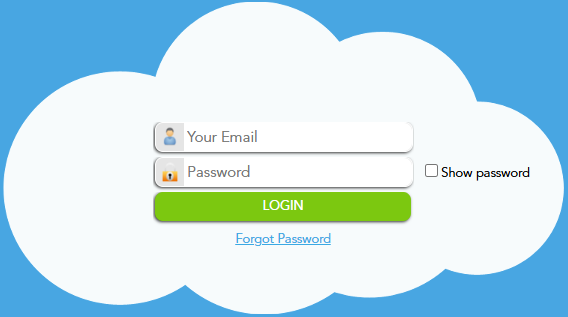
- Open the Meal Counts & Attendance Dashboard
On your dashboard, click “ENTER” or “Get Started.”
- Click on “Record Meals”

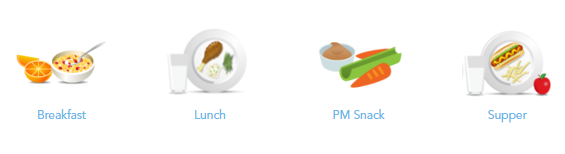
- Select Meal Time. Choose the appropriate meal time for the entry (e.g., Breakfast, Lunch, Snack).
- Window will open to Meal Counts and Attendance
- Confirm or Change the Date. Today’s date will show by default.

7. Choose Classroom(s). Use the dropdown to select all classrooms at once or pick an individual classroom.
8. Mark Attendance and Meal Counts Children listed in green are marked “present” for both meals and attendance by default.
Click a child’s name once to turn them red (not present for meals or attendance). Click twice to turn them yellow (present for attendance only, not meals).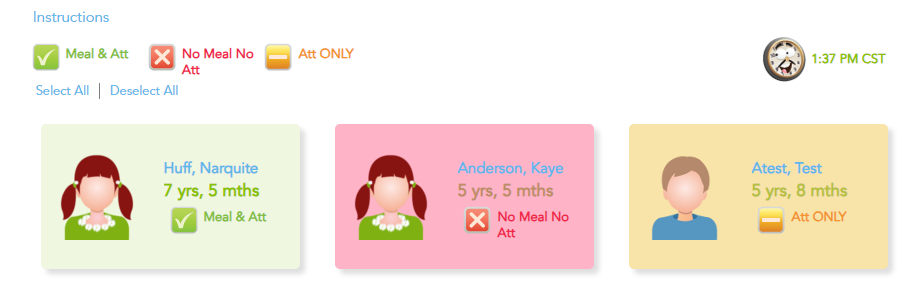
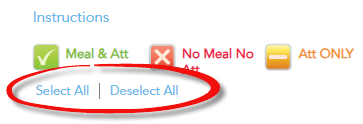
9. Use the Select All or Deselect All Buttons. To quickly mark all children as present or absent, use “Select All” or “Deselect All.”
10. Save Your Entries. Click the green “Save” button at the bottom of the page.
11. Confirm and Submit. Select “I Agree & Save” on the confirmation popup to complete your entry.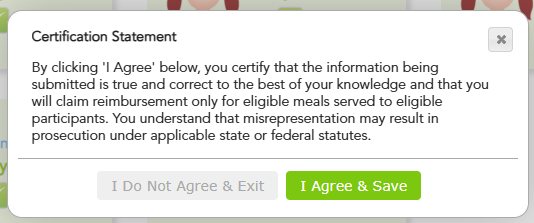
12. Data successfully saved!