
How Do I Review Expense and Receipt Information in MyFoodCloud and Zoho Expenses?
Reviewing Audit/Performance Reports in MyFoodCloud
- Log in to MyFoodCloud.
- From your user dashboard, click the ENTER/Get Started button.
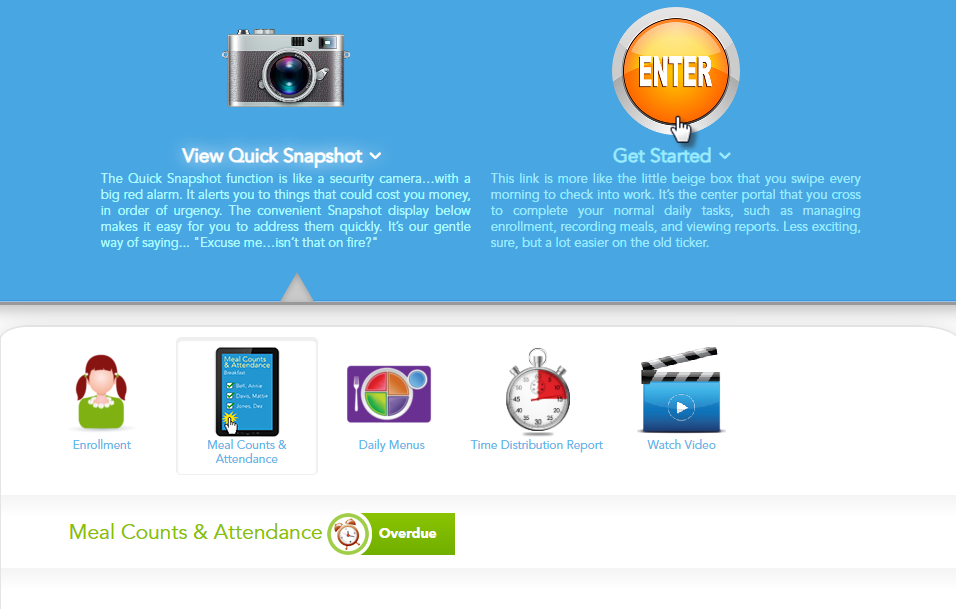
- Navigate to See Program Results.

- Click on Performance Reports.
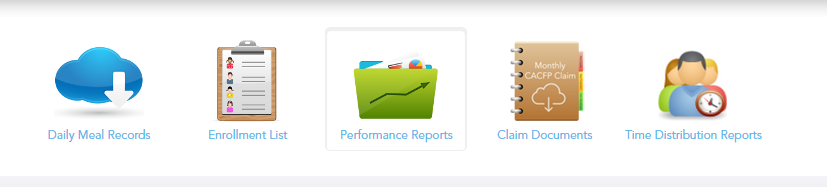
- Select the month you wish to review.

Here you can view all monthly expense information, including milk audits.
- You will also receive an audit report by email after your monthly claim is finalized.

Reviewing Monthly Receipt Summaries in MyFoodCloud
- From your MyFoodCloud dashboard, go to See Program Results.
- Then, select Claim Documents.
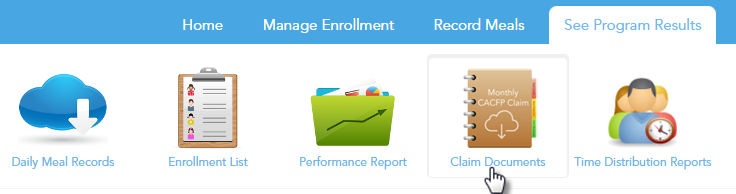
- Choose the correct month in the drop-down menu to access your receipt summary link.

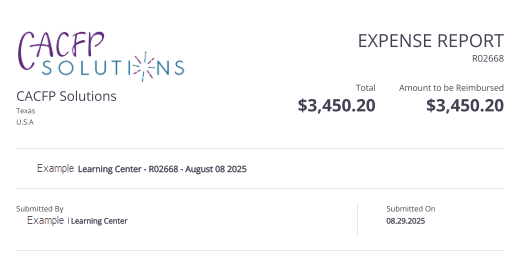
You will see a link to a report with images of all receipts submitted for the month.
- Monthly receipt summary reports are also sent to your email.
Reviewing Expense and Receipt Data in Zoho Expenses (Desktop Version)
- Log in to your Zoho Expense account via the desktop web browser https://expense.zoho.com

- Go to the Expenses tab to view receipts you have recently submitted.

- To see comprehensive receipt reports, click the Reports tab.
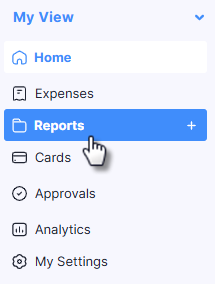
You can review details and statuses of each receipt uploaded.
Note: You do not need to attach receipts to reports or submit reports yourself—CACFP Solutions does this for you.