
How Do I Add New Enrollees in MFC?
- Go to enter.myfoodcloud.com and log in to your MyFoodCloud account.
- From your dashboard, click the Enter/Get Started button.
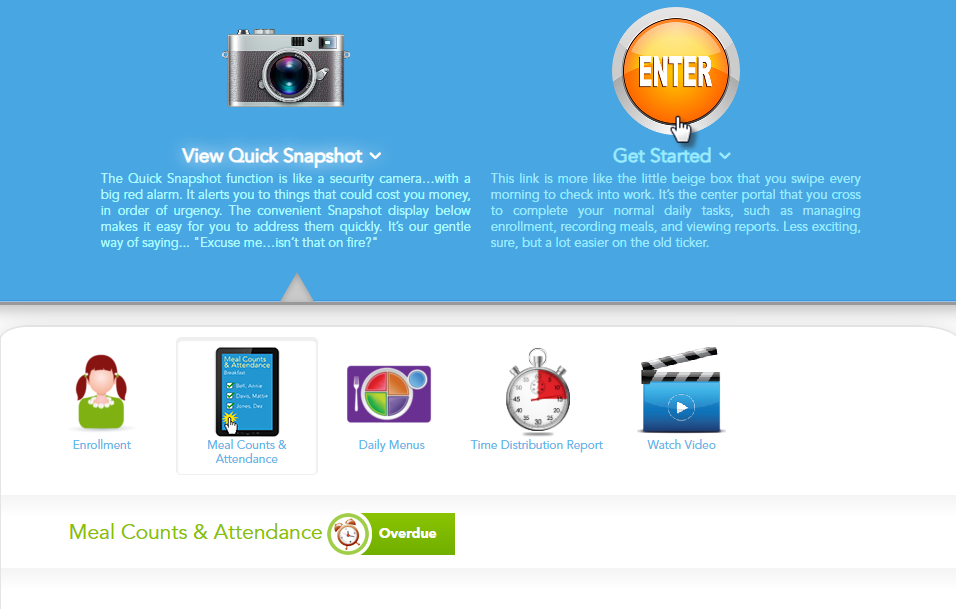
- Click the Manage Enrollment tab.

- Click the Add New Enrollee button to start adding a new child.

- Enter the basic enrollee (child) information in the form. When finished, click Add at the top right of the page.

- If you are enrolling siblings, select Yes on the pop-up window to add another child. Enter the sibling’s information and click Add again.
The E-Forms for siblings will be linked together for the same parent/guardian.

- Input the parent or guardian’s basic information in the parent section.

- Click the Save New Enrollee button at the bottom center of the page.
- An E-Form invite is automatically sent to the parent’s email and text message for digital signature and completion.
- You’ll see a “Saved Successfully” notification. If the parent is present, click the Link to Update Forms in the pop-up to let the parent complete the E-Form on site.
