
If your receipt was rejected, you’ll receive a notification via email or text from us. This usually happens because the receipt is blurry or missing important details.
Here’s How to Fix Incomplete Receipt
- Log in to your Zoho App.
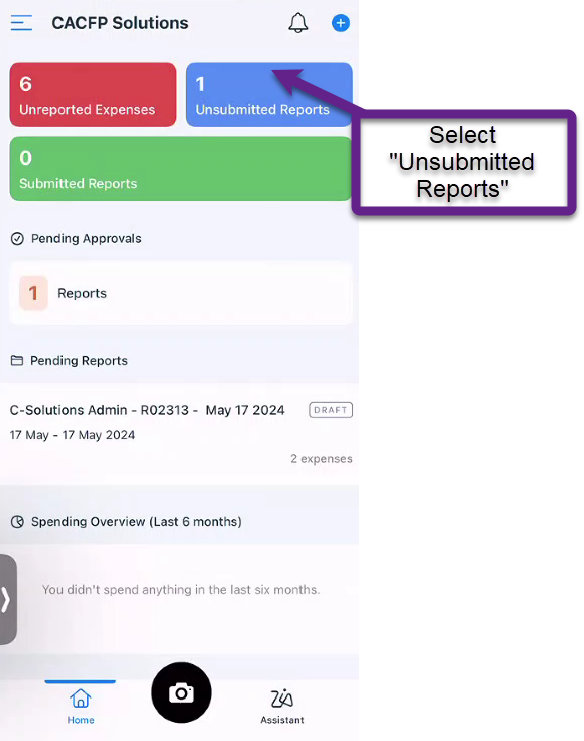
- Select “Unsubmitted Reports.”
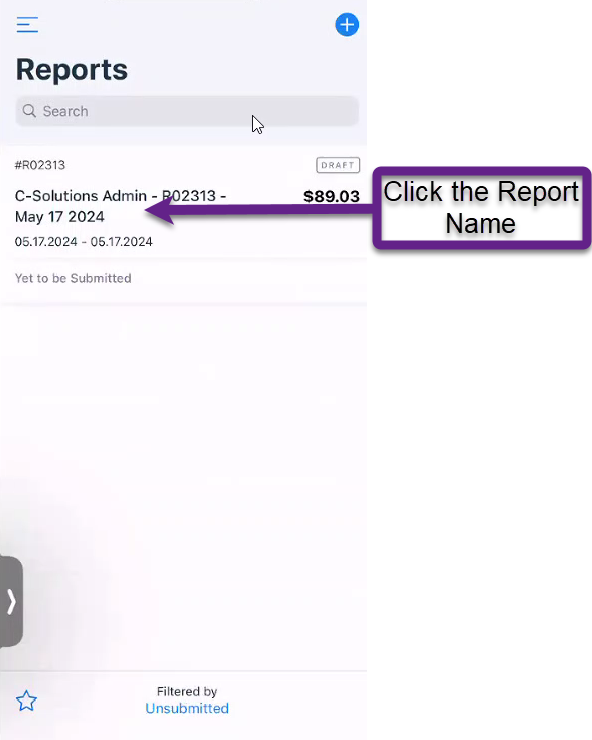
3. Click the Report Name.
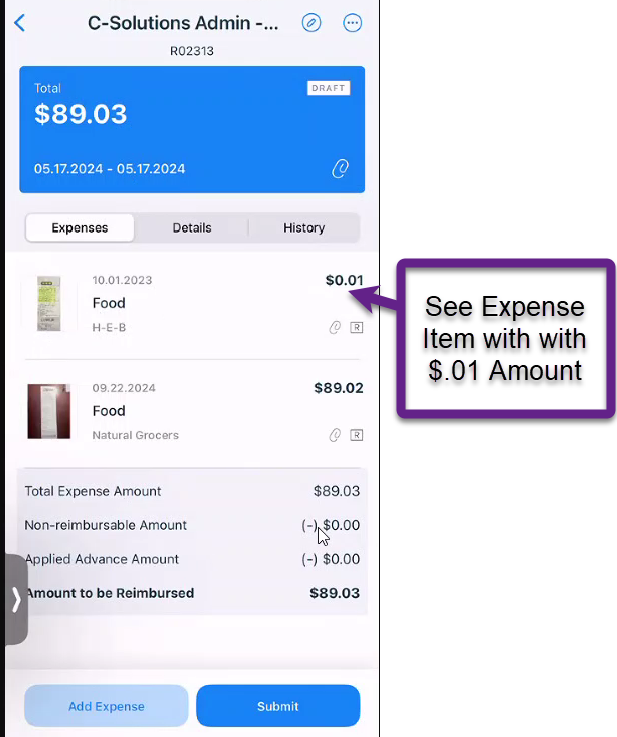
4. The incomplete or rejected receipt will show as a $0.01 amount.
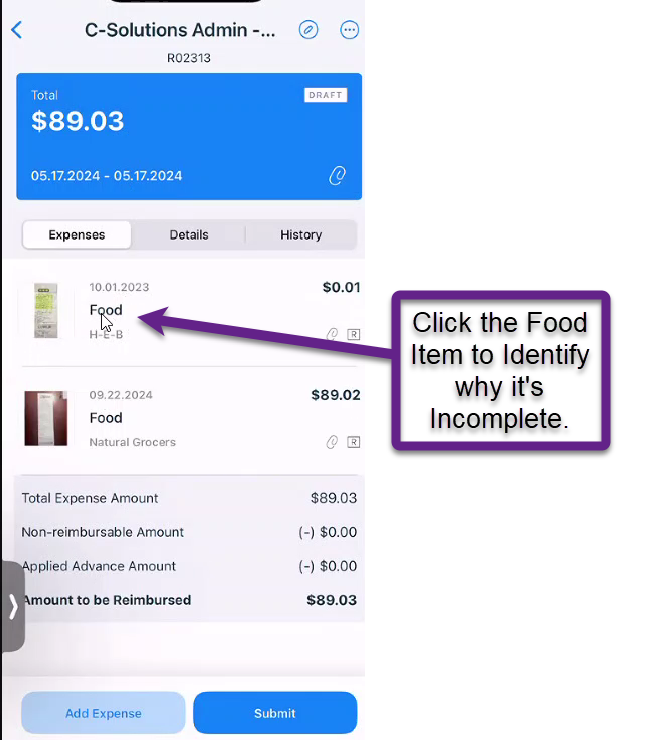
5. Click on the expense item to see why it was marked as rejected/incomplete.
6. Note the Receipt Approval Status and Rejected Reason.
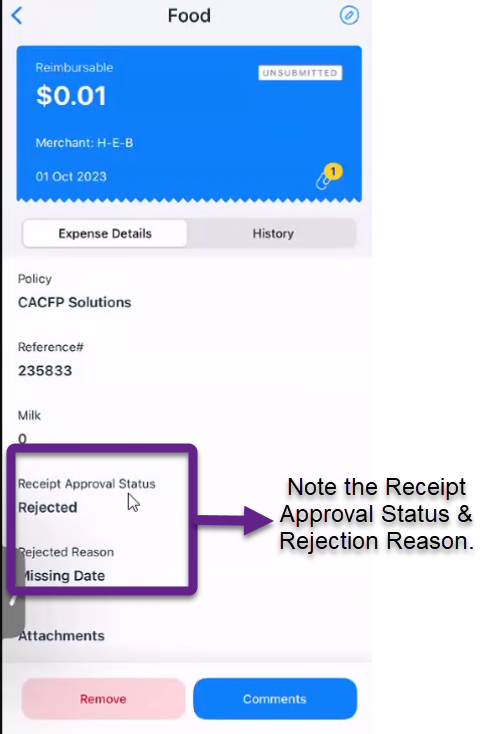
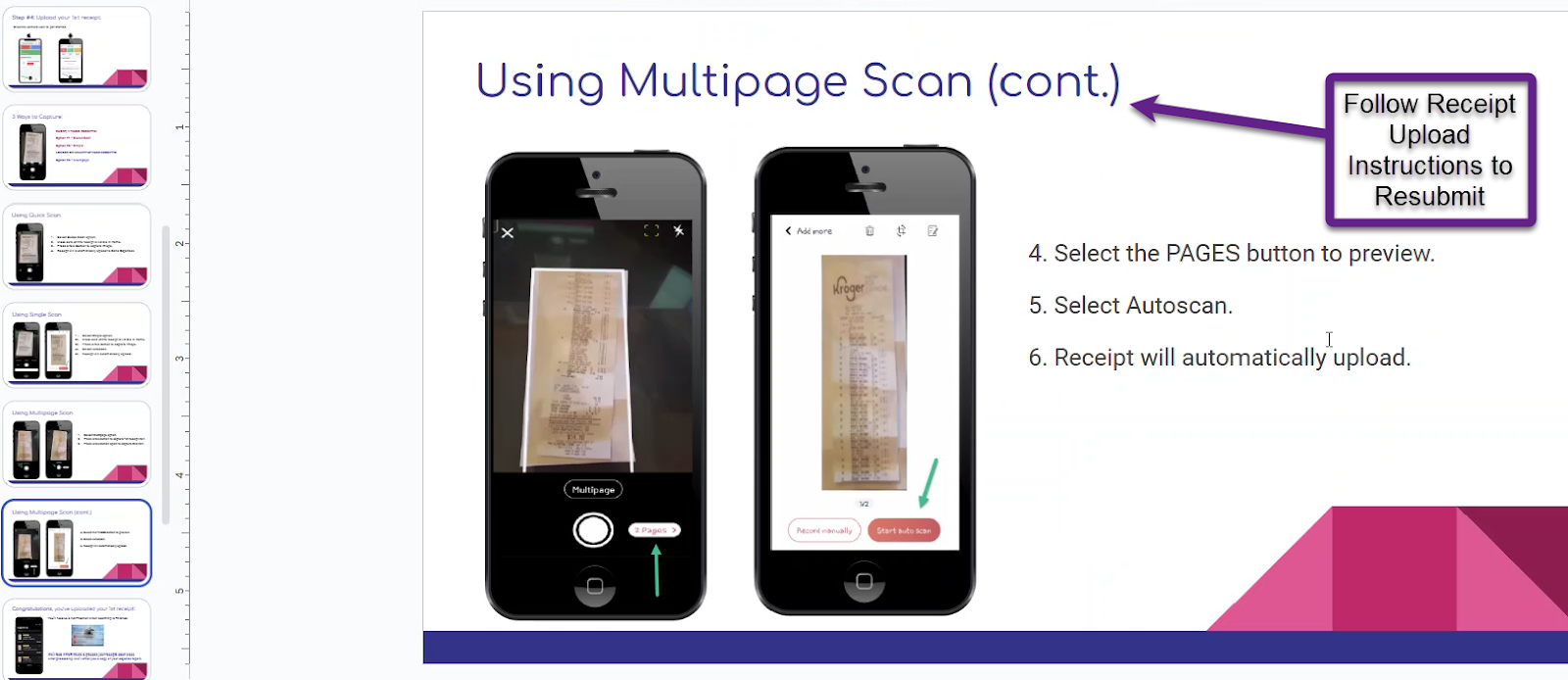
7. Now, just follow the receipt upload instructions to resubmit. We will process these on our next processing date.
Tips for Successful Receipt Submission
- For long receipts, use the multi-page feature instead of the auto-scan feature to capture the ENTIRE RECEIPT.
- Double-check that all required details are clearly visible before uploading.
- Receipts should show:
- Date
- Store Name
- All Item Prices & Descriptions
- Total Amount
- Receipts should show: