
🥕Menu Changes in MFC
How Do I Make Menu Changes in MFC?
- Log in to your MyFoodCloud account.
- From your user dashboard, click the ENTER/Get Started button.
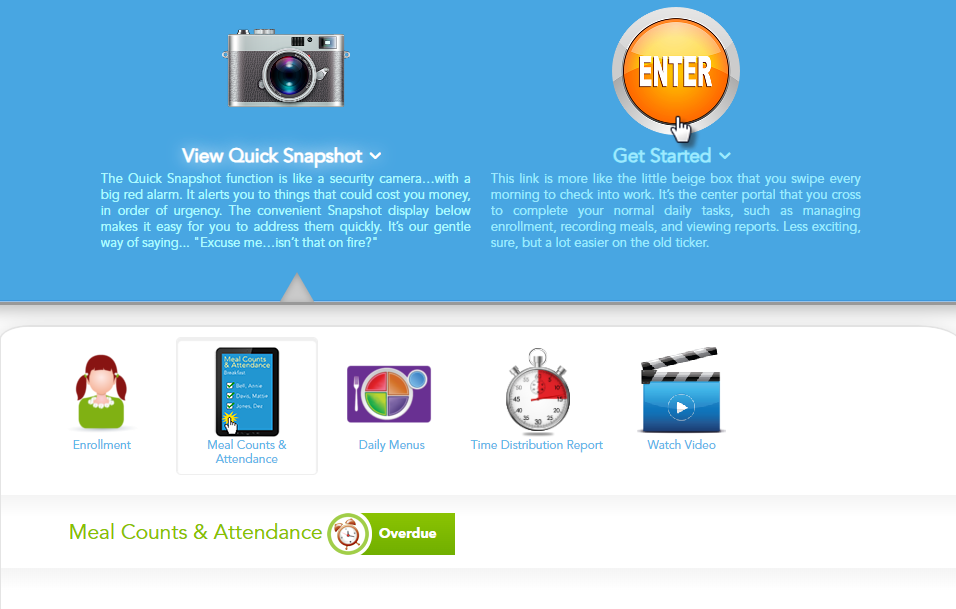
- Click Record Meals on the main menu.
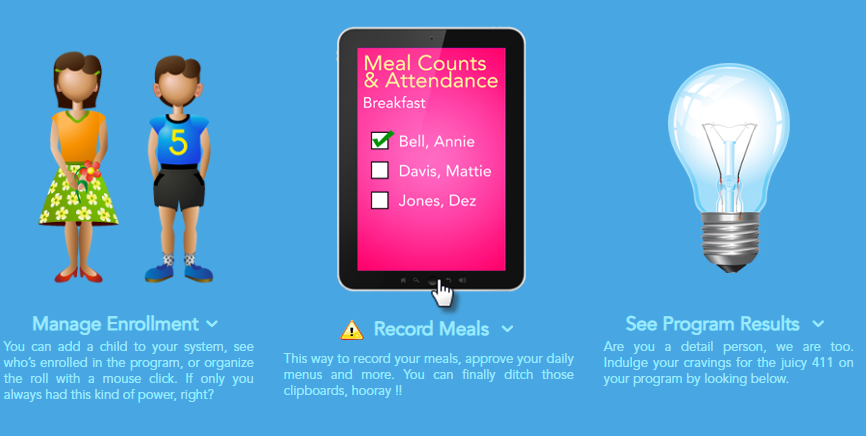
- Select the mealtime (e.g., Breakfast, Lunch, Snack) you want to update.

- Click on Daily Meal Production Record for the selected day.

- Find the line item (food or menu item) you wish to substitute or change, and double-click on it, or click the Pencil (Edit) button to make changes.

- Use the drop-down menus to select the new Menu Item and update the Food Item Used as needed.

- Click Save to confirm your changes.

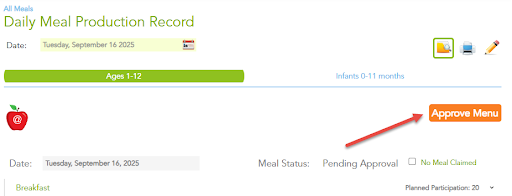
- After making all necessary changes, click the Approve Menu button to finalize your updates.
- For major menu overhauls (not just simple substitutions), please reach out to us for assistance.